Show or hide fields based on user input. Toggle a switch or pick an option, and the form reshapes itself in real time.
Build booking flows, service configurators, or any calculator where questions depend on previous answers.
Break long calculators into clear, focused steps. One question at a time, with progress shown along the way.
Best for detailed quotes, multi-stage estimates, or any calculator with several decisions to make.
Accept payments right inside the calculator. Stripe, PayPal, Razorpay, or cash all supported.
Best when the calculator should sell, not just quote.
Build any formula with math, conditions, and your own logic. Add as many Total fields as the calculation needs.
Good for any pricing that goes beyond "price × quantity."
Build any discount rule you need - by price threshold, by time window, or by promo code.
Useful for holiday sales, limited-time campaigns, or rewards for loyal customers.
Collect details about each person right in the calculator - name, email, phone, or website, all in the right format.
Useful for callback requests, event registrations, or signing up several participants at once.
Turn the calculator into a real order flow with a built-in form, lead capture, and email notifications.
Right when every quote is also a lead, and you need a way to follow up.
Drop in image-based radios, checkboxes, or dropdowns when the choice needs to be seen, not read.
Useful for picking colors, styles, package types, or service tiers.
Let distance drive the price - by customer's address, by route between two points, or by which branch they choose.
Right whenever the price depends on the trip, not just the order.
Group related fields into one block, or repeat a block of fields for each item the customer adds.
Useful for multi-item orders, group bookings, or any calculator where the same questions repeat.
Let customers send files as part of the order. Control format, size, count, and add a fee when files mean more work.
Best when the work starts with a file - a design, a document, a photo of the problem.
Add a terms and conditions checkbox before customers can submit their order.
Best when "I accept" needs to happen before "buy now."
Plug the calculator into WooCommerce. Hundreds of payment gateways become available, and product stock updates with every order.
Useful when you already run a Woo store and want the calculator to share its checkout, stock, and orders.
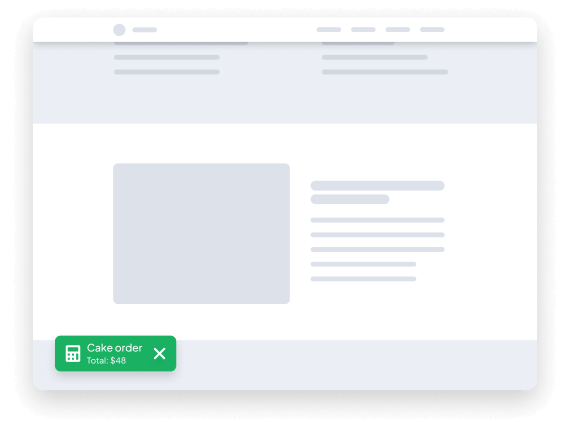
Keep the calculator one click away with a floating button. It shows the current total and opens the full form when tapped.
Useful when the calculator is the main call to action, not just a section.
Place a sticky banner above or below the page content. Headline, description, and live total work together as a promotional call-out.
Best when you want every visitor to notice the calculator, not just find it.

You can use a Sticky Calculator as a floating button on the page and choose its title and icon. You can also decide where to show the button and what it does when clicked, like opening a popup or going back to the calculator.
Learn moreWe're excited to show you how our Sticky Calculator works. As you explore this page, you'll see a floating button that you can use at any time. This button stays in place as you scroll, making it easy to access the calculator whenever you need it.
The Sticky Calculator is designed to be convenient and easy to use. No matter where you are on the page, you can quickly access the calculator without having to scroll back to the top.